PDF Tools

Extract pages from a PDF.

Save selected pages from a larger PDF so you can keep or share only what matters.

PDF Page Extractor App Store screenshot preview
PDF Page Extractor app iconPDF Page ExtractorOpsOh app
What it does

Built around one clear job.

Save selected pages from a larger PDF so you can keep or share only what matters.

Open a PDFChoose selected pagesCreate a smaller PDFSave or share extracted pages
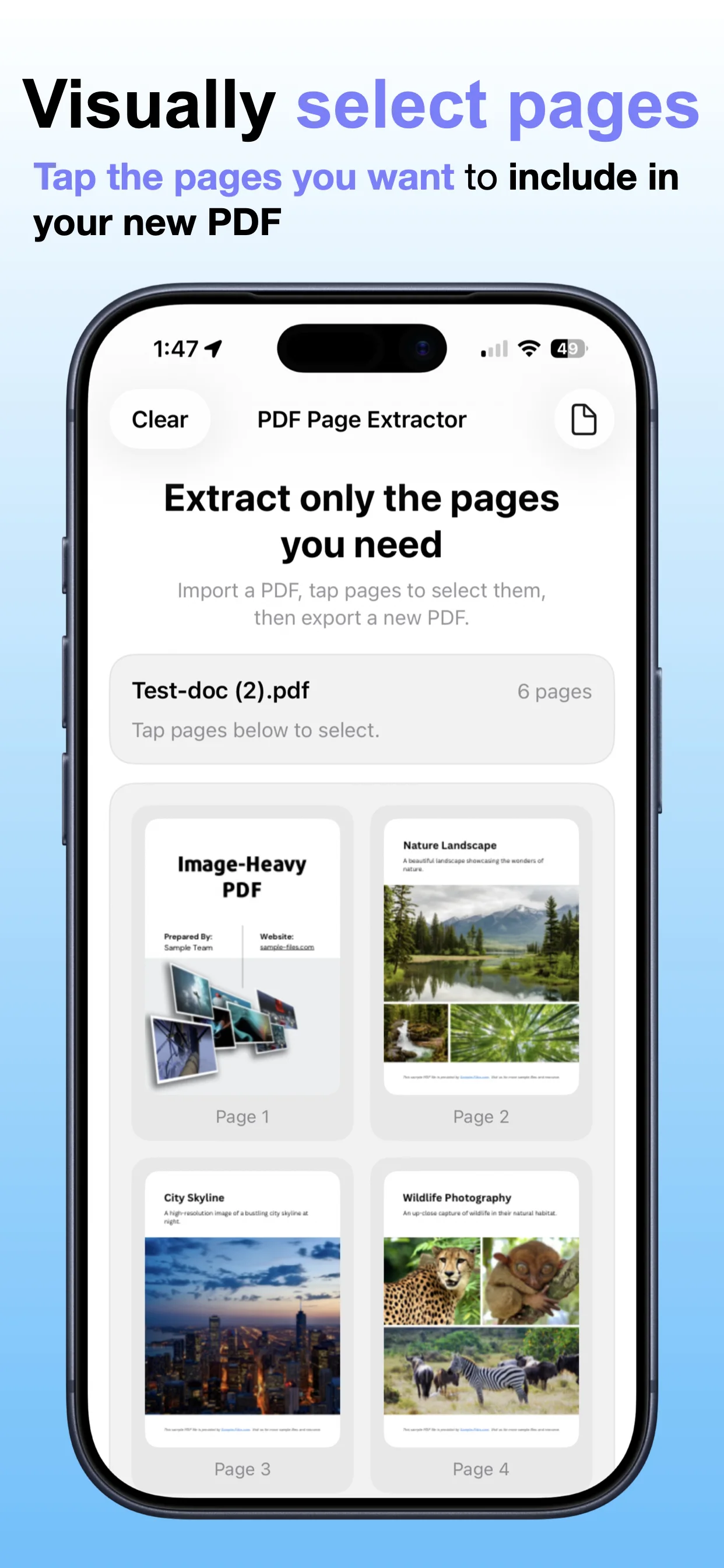
See PDF Page Extractor in action.

A focused walkthrough of the app experience using App Store screenshots.

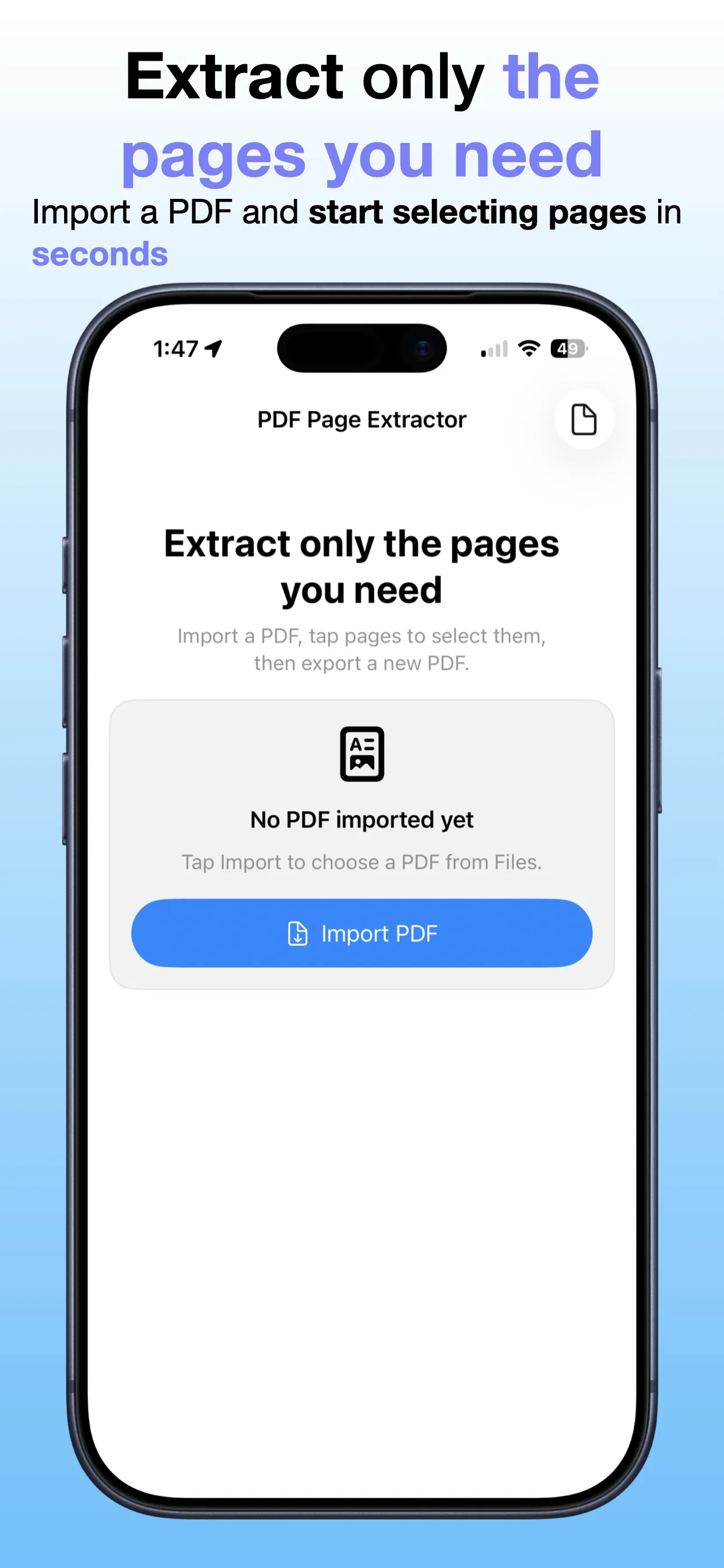
PDF Page Extractor screenshot: Open a PDF
Open a PDF

Select the document you want to work with.

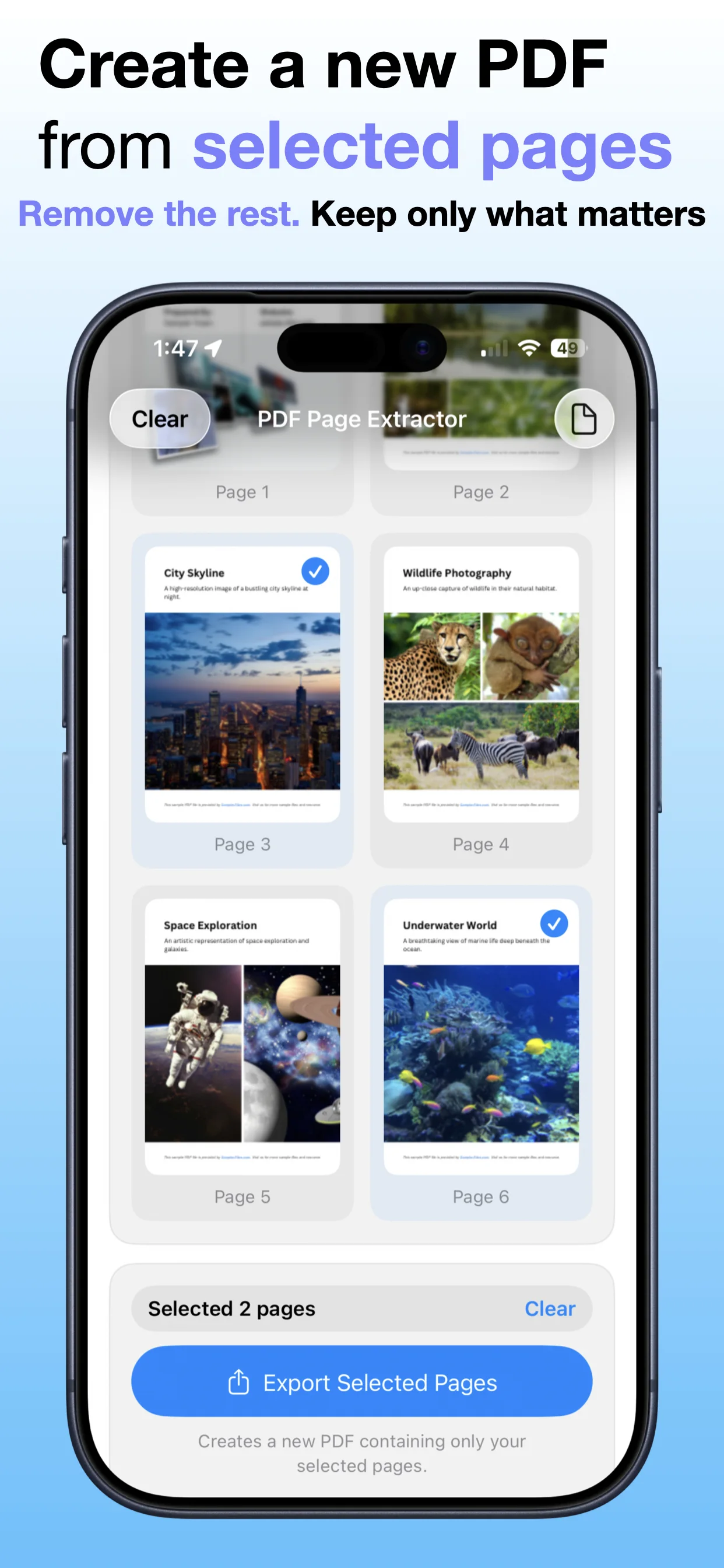
PDF Page Extractor screenshot: Choose pages
Choose pages

Pick only the pages you need to extract.

PDF Page Extractor screenshot: Create a smaller PDF
Create a smaller PDF

Save selected pages as a separate file.

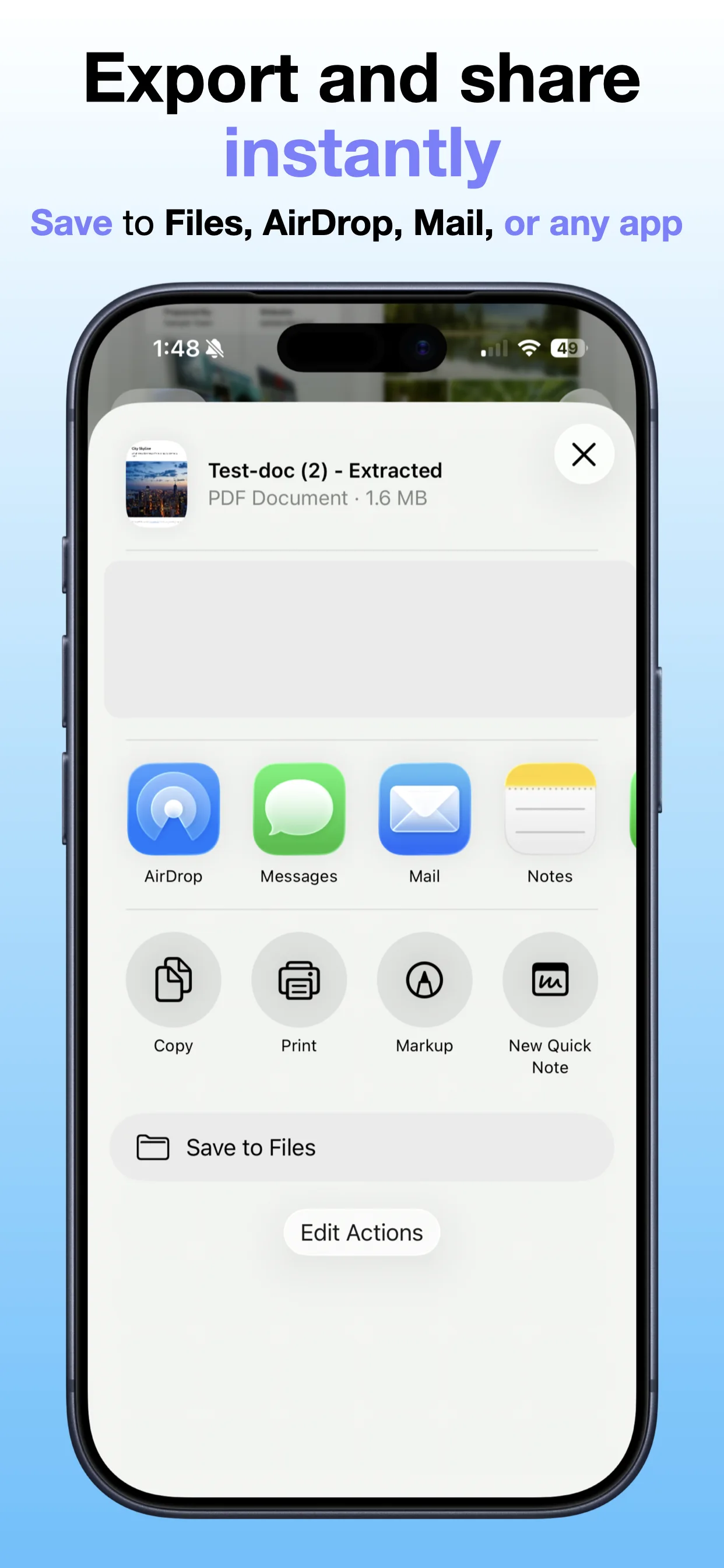
PDF Page Extractor screenshot: Share the result
Share the result

Send or store the extracted PDF pages.

Get the app

Open the App Store listing or OpsOh developer catalog.

Open →

Browse bundles

See related OpsOh apps grouped into workflow bundles.

Open →

Contact support

Get help with OpsOh apps and product questions.

Open →