
Video Tools

Extract still photos from videos.

Save useful frames from video clips as photos for sharing, records, or creative workflows.

Extract Photo from Video App Store screenshot preview
Extract Photo from Video app iconExtract Photo from VideoOpsOh app
What it does

Built around one clear job.

Save useful frames from video clips as photos for sharing, records, or creative workflows.

Choose a videoFind a useful frameSave a still imageUse the photo for sharing or records
See Extract Photo from Video in action.

A focused walkthrough of the app experience using App Store screenshots.

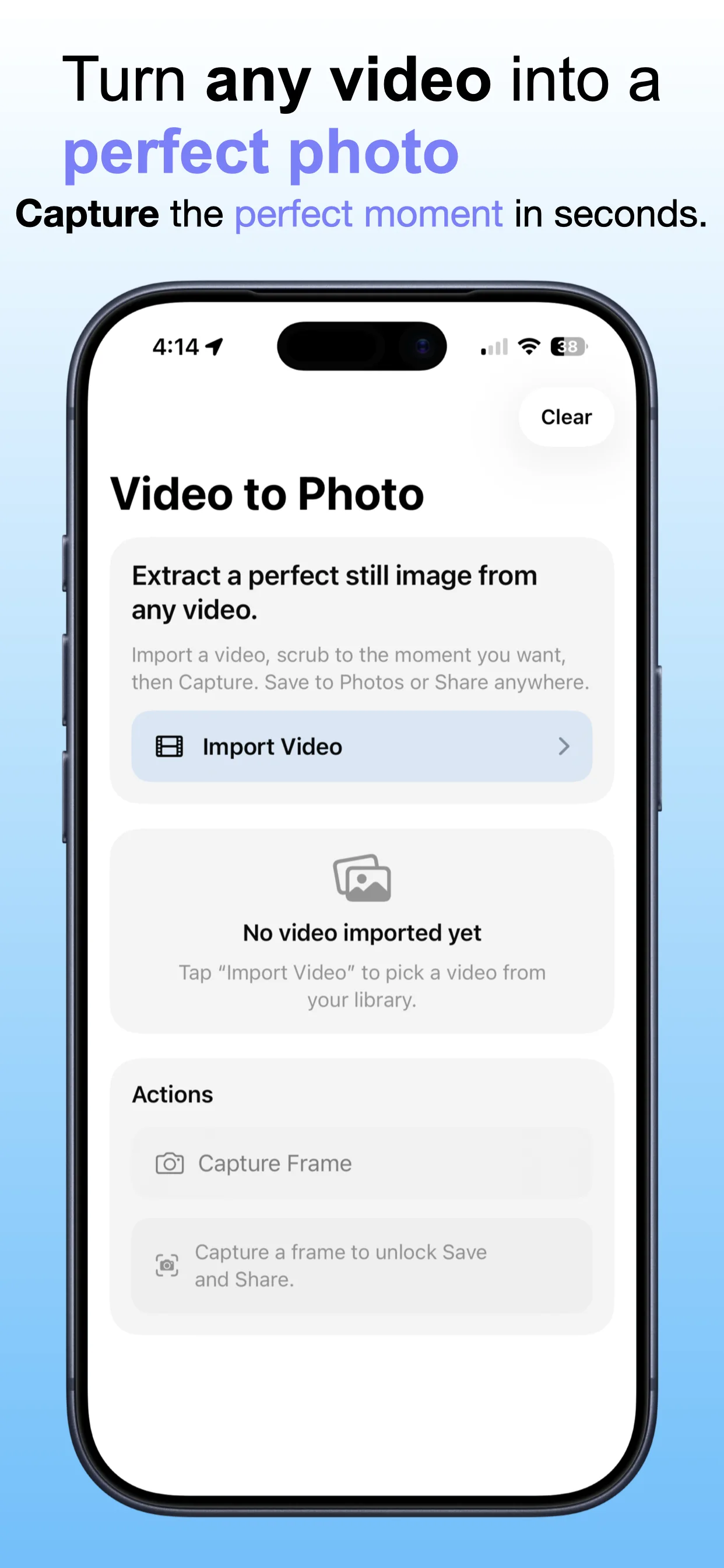
Extract Photo from Video screenshot: Choose a video
Choose a video

Select a video with a moment you want to save as a photo.

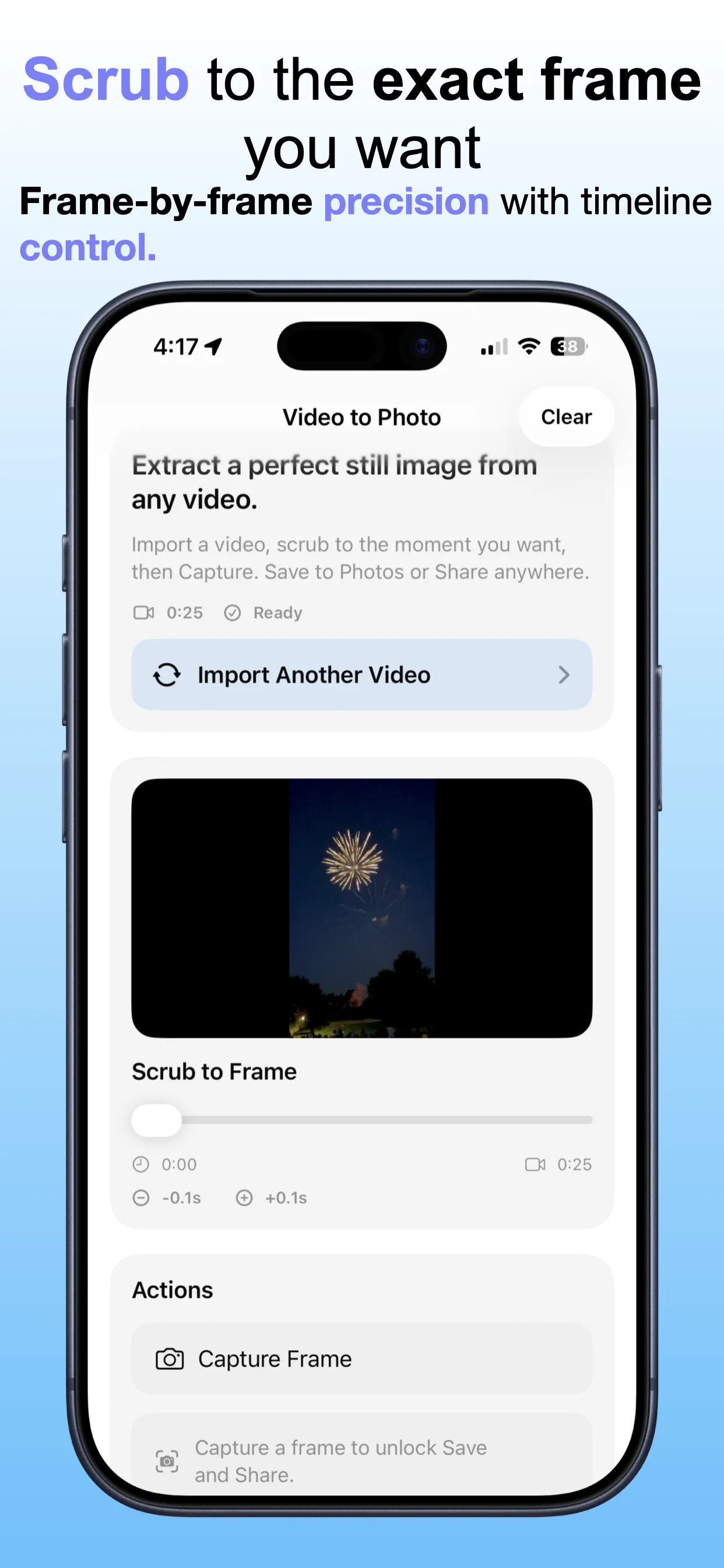
Extract Photo from Video screenshot: Find the right frame
Find the right frame

Review the clip and choose a useful still image.

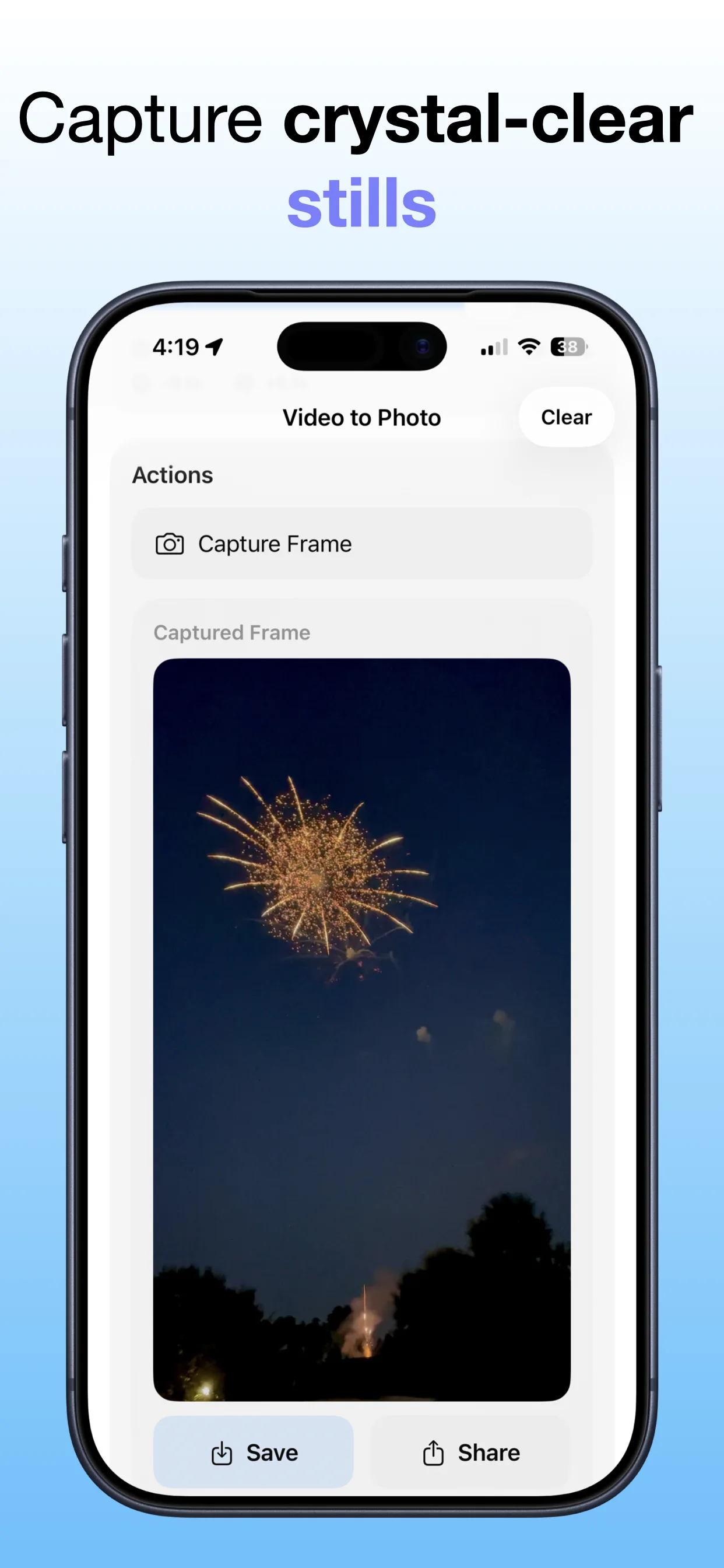
Extract Photo from Video screenshot: Extract a photo
Extract a photo

Save a selected frame from the video.

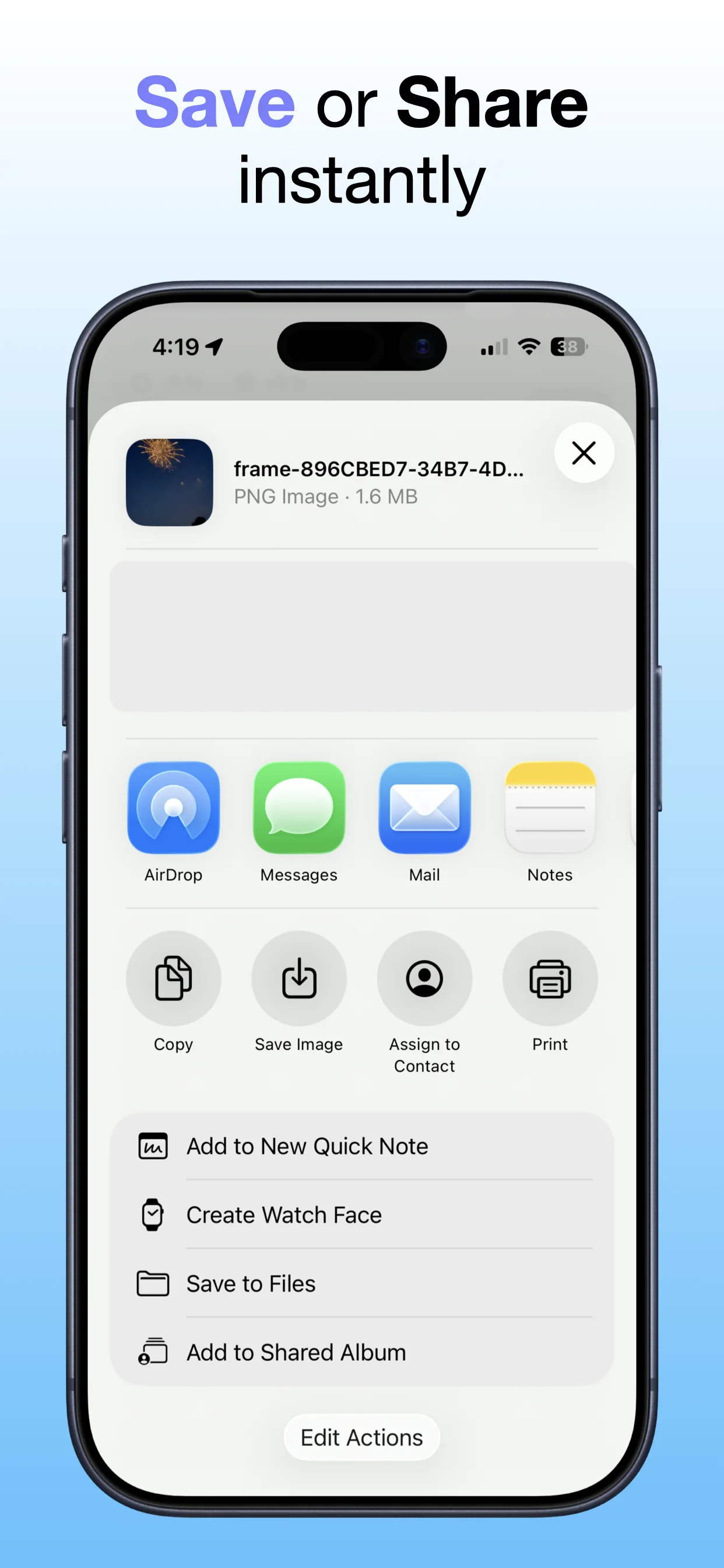
Extract Photo from Video screenshot: Share or keep the image
Share or keep the image

Use the extracted photo for records, sharing, or creative work.

Get the app

Open the App Store listing or OpsOh developer catalog.

Open →

Browse bundles

See related OpsOh apps grouped into workflow bundles.

Open →

Contact support

Get help with OpsOh apps and product questions.

Open →